Grant Permissions for Downtime Catalogs & Machine Templates
Quick Demo · 0:07
00:07Grant Company Catalog & Template Permissions
Chapters
Searchable Transcript (2 steps)
- 00:01Open Permissions on a company card to review existing catalog and template grants.
- 00:02Click Grant Access, enter the engineer email address, and toggle Downtime Catalogs or Machine Templates access.
Because Company Downtime Catalogs and Company Machine Templates affect every inheriting plant across the organization, editing them is restricted by default. Company Owners can delegate scoped access to specific engineers or reliability leads without granting full Company Owner privileges.
Step 1: Open Company Permissions
- Navigate to Configuration -> Companies.
- On the company card, open the actions menu and select Permissions (or Resource Access).
- Review the list of users who currently hold access to Company Downtime Catalogs or Company Machine Templates.
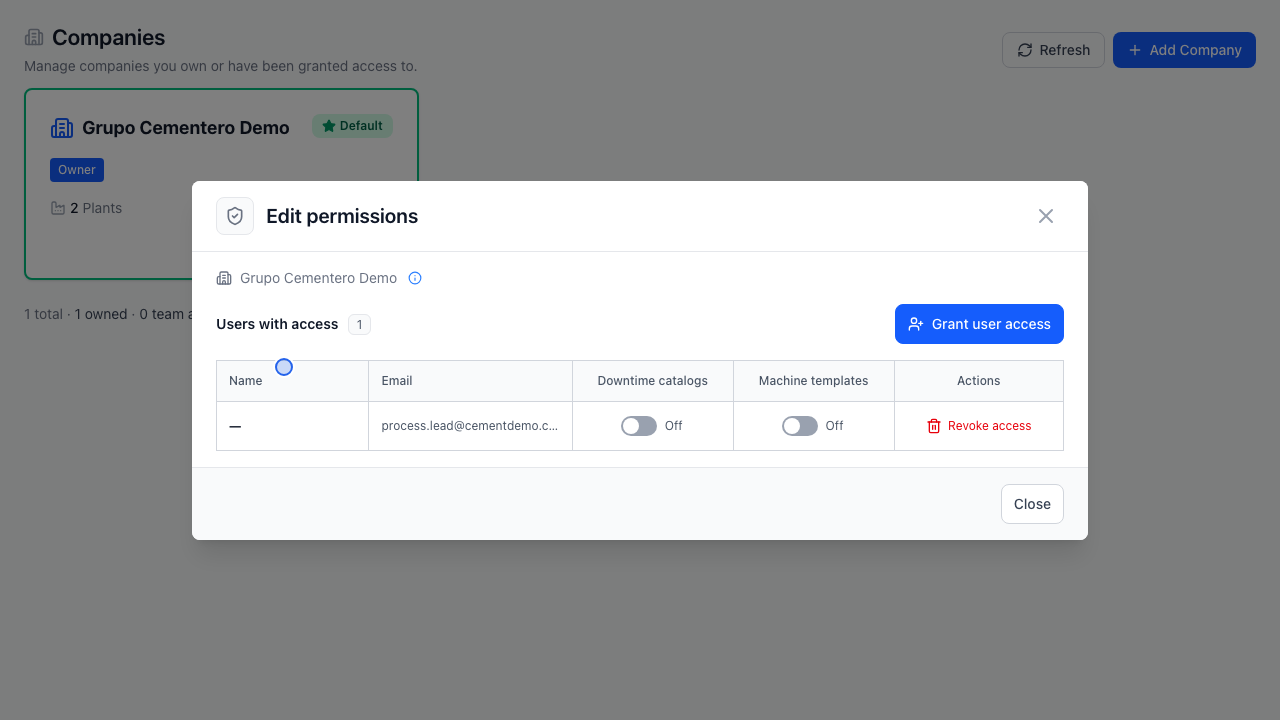
Step 2: Grant Access by Email
- Click Grant Access inside the permissions modal.
- Enter the registered User Email (for example,
carlos.mendez@valladolidcement.com). - Toggle the permissions you want to delegate:
- Downtime Catalogs (
company_downtime_catalogs:*): Allows managing Stoppage Classes, Failure Types, and Failure Reasons. - Machine Templates (
company_machine_templates:*): Allows creating and editing Machine Templates, Components, and Expected Tags.
- Downtime Catalogs (
- Click Grant Access to apply immediately.
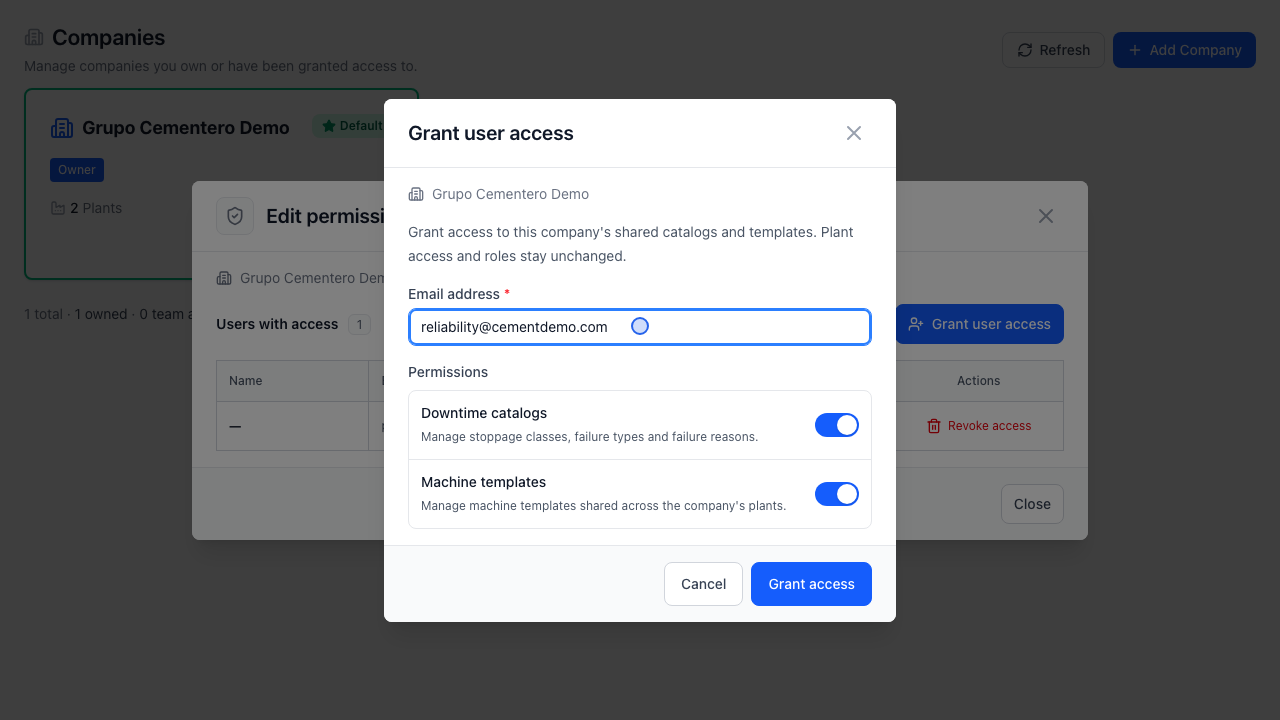
Step 3: Edit or Revoke Grants
- Click Edit next to any listed user to add or remove either resource toggle.
- Click Revoke to remove company-level library permissions without affecting their plant-level roles inside individual plants.