Create, Edit, and Delete Digital Sets (Digital States)
Quick Demo · 0:16
00:16Create, Edit, and Delete a Digital Set
Chapters
Searchable Transcript (3 steps)
- 00:01Map numeric PLC values to readable labels (for example 0 = Stopped, 1 = Running).
- 00:09Edit names or state labels whenever equipment naming conventions change.
- 00:12Confirm by typing the exact digital set name when no tags still reference it.
What Are Digital States (Digital Sets)?
Industrial PLCs and SCADA systems commonly transmit equipment status, damper positions, or valve modes as bare integers such as 0, 1, 2, or 3. A Digital Set is a plant-level lookup dictionary that maps each integer code to a human-readable Digital State label:
| Raw PLC Value | Digital State Label | Typical Meaning |
|---|---|---|
0 | Stopped | Drive de-energized / zero speed |
1 | Running | Operating in normal production mode |
2 | Standby / Ready | Permitted to start, awaiting interlock |
3 | Tripped / Fault | Shutdown triggered by protection interlock |
When you attach a Digital Set to a discrete tag, Live Values, Historical Trends, Downtime Rules, and Ask Cogni automatically display descriptive state text alongside numeric codes.
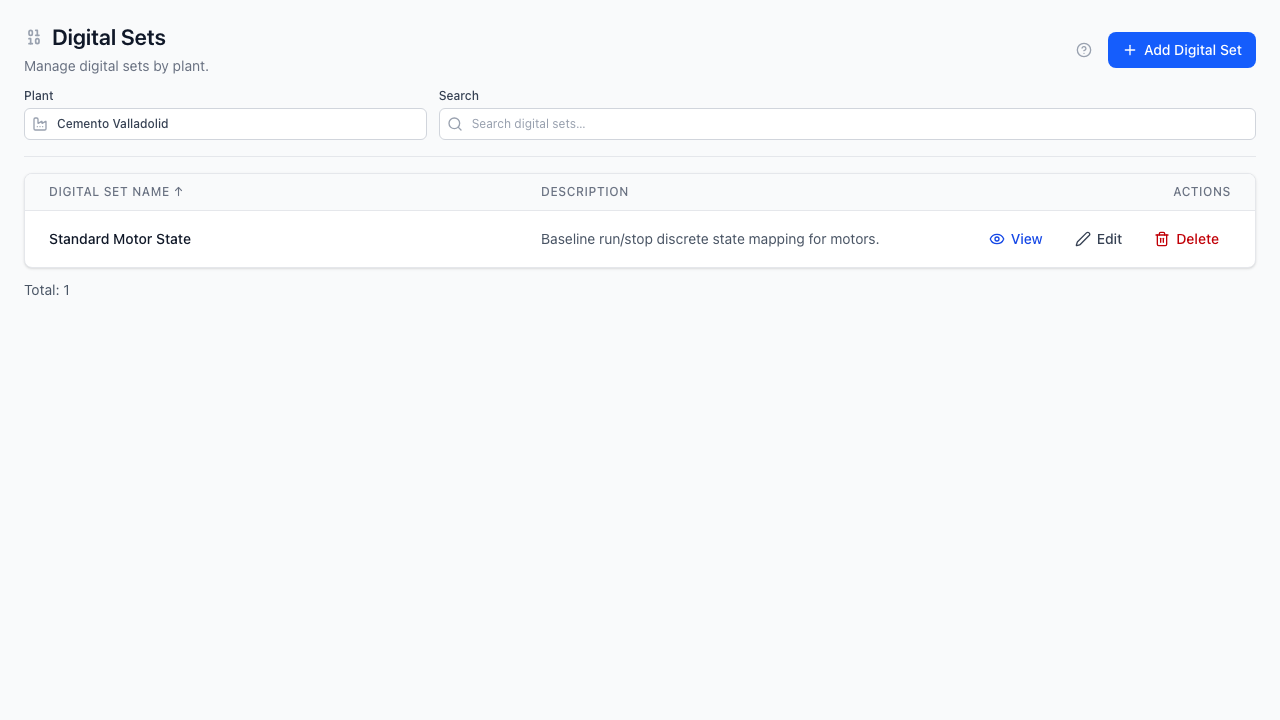
Step 1: Open Digital Sets for Your Plant
- In the left menu, go to Configuration -> Digital Sets.
- Confirm the active Plant in the top filter bar.
Step 2: Create a Digital Set (At Least Two State Mappings)
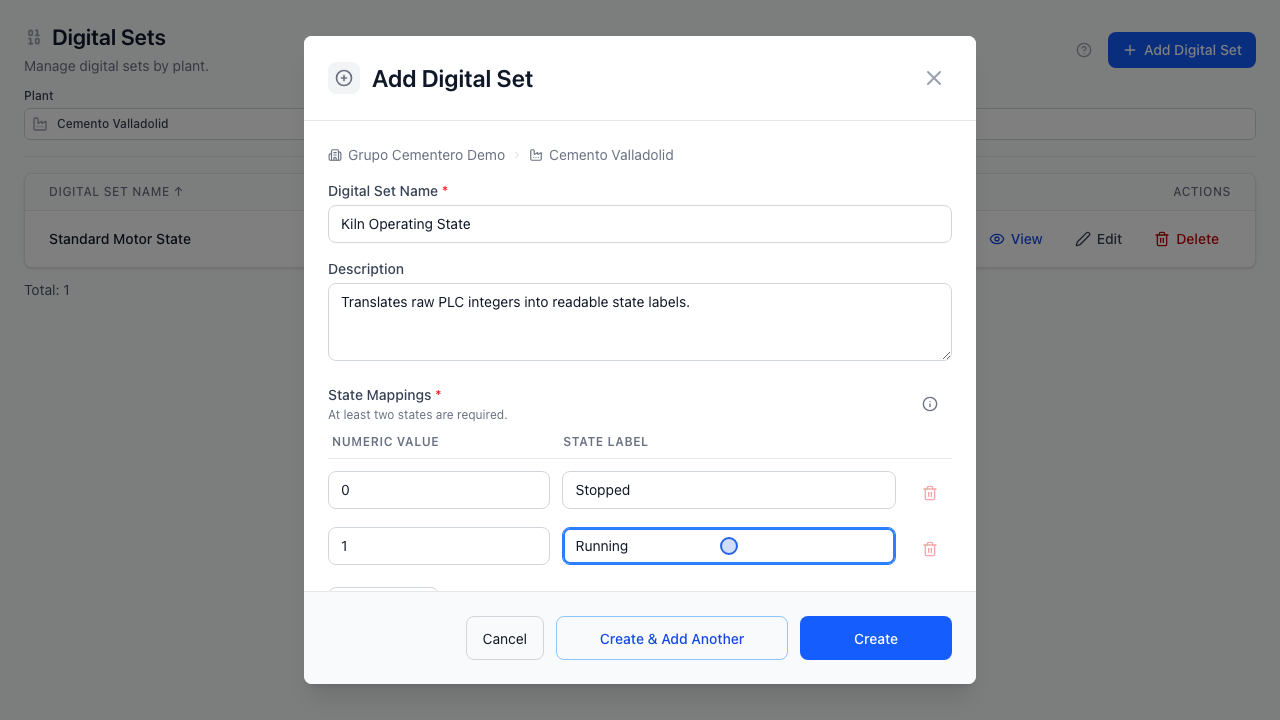
- Click Add Digital Set in the top-right header.
- Enter a clear Digital Set Name (for example,
Kiln Operating State) and an optional Description. - Define at least two state pairs under State Mappings:
- Enter the integer Numeric value (e.g.
0,1) and its State label (Stopped,Running). - Add extra rows if the PLC sends more multi-state integers (
2 = Standby,3 = Fault).
- Enter the integer Numeric value (e.g.
- Click Create to save the mapping table.
Step 3: Edit or Delete a Digital Set
- Edit: Click Edit directly in the table row actions column to update the set name, description, or numeric-to-label pairs. Changes apply immediately to linked tags.
- Delete: Click Delete on the row and type the exact digital set name to confirm deletion.
Deletion Blocked While Tags Still Reference the Set
To preserve historical trend rendering, OTCognix blocks deletion if any plant Tag currently references that Digital Set. Reassign or unlink those tags first before deleting an obsolete set.