Create and Manage a Company
Quick Demo · 0:20
00:20Create, Edit, and Delete a Company
Chapters
Searchable Transcript (3 steps)
- 00:01Click Add Company, enter the company name and description, then submit.
- 00:07Open Manage -> Edit Company to update the company name or description.
- 00:14Open Delete Company, type the exact company name to confirm, and permanently remove it.
A Company is the top-level tenant boundary in OTCognix. It groups plants, shared downtime catalogs, shared machine templates, and company-level resource access.
Before You Start
- Sign in to the OTCognix web application with an account allowed to create companies.
- Decide on a unique Company Name. Duplicate company names are rejected when saving.
- Optional: prepare a short description explaining the organization or business unit scope.
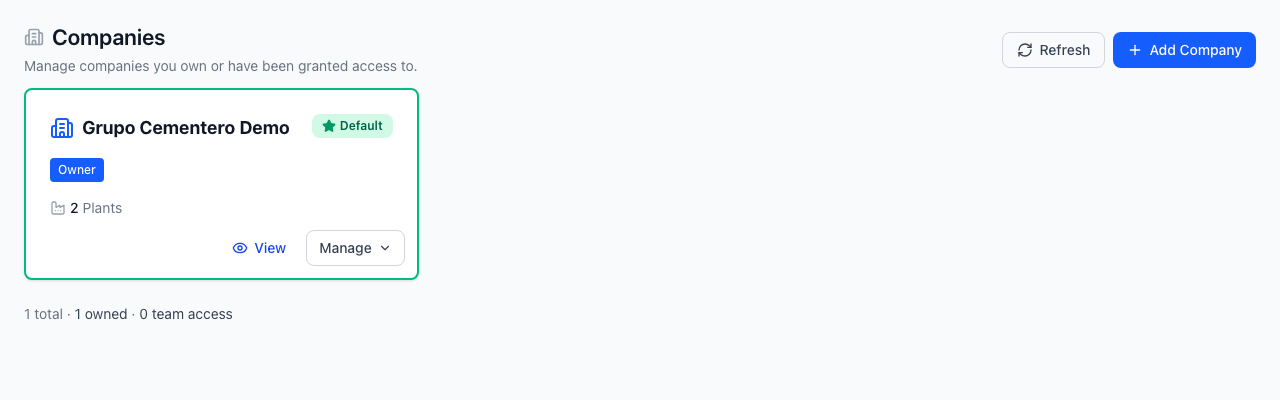
Step 1: Open the Companies View
- In the left navigation bar, go to the Configuration section and open Companies.
- Use the search bar or Access filter if you want to verify whether the company already exists before creating a new record.
Step 2: Create the Company
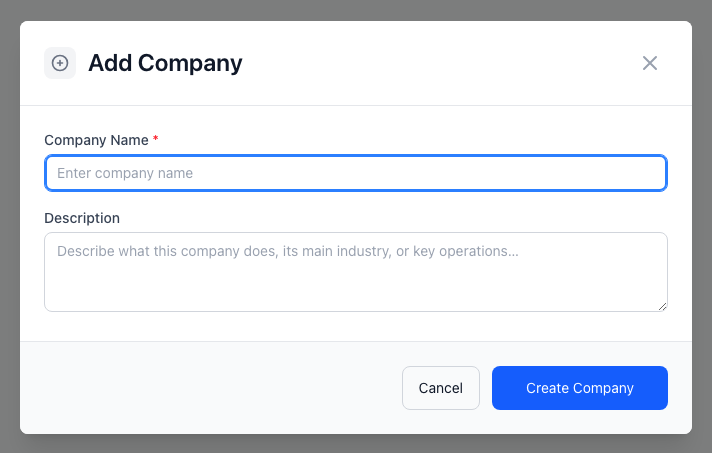
- Select Add Company in the top-right page header.
- Fill in the modal form fields:
- Company Name (required): Enter the organization name. Leading and trailing whitespace is trimmed, and blank names fail validation.
- Description (optional): Add context about the organization or sites managed under this company. Leave empty if not needed.
- Submit the form to create the company.
Field Reference
| Field | Required | Validation & Behavior |
|---|---|---|
| Company Name | Yes | Must contain at least one non-whitespace character; must not duplicate another name. |
| Description | No | Optional plain-text summary; omitted from the payload if left blank. |
Step 3: Post-Creation Actions
Once the company appears in the company grid, select its row/card actions depending on your permissions:
- Set as Default: Marks the company as your active default workspace context in the top header so plants and monitoring views load for it automatically.
- Edit: Updates the company name or description (requires
companies:update). - Manage Catalogs / Manage Templates: Opens company-level downtime catalogs and machine templates that new plants can inherit.
- Resource Access: Reviews or manages company-level permissions and assignments.
- Delete: Permanently removes the company after confirmation — type the exact company name in the confirmation field to enable Yes, Delete Company (requires
companies:delete).
Common Errors & Troubleshooting
| Symptom / Error | Likely Cause | Resolution |
|---|---|---|
| Validation error under Company Name | Empty input or duplicate company name on the server | Enter a distinct, non-empty name and resubmit. |
| Edit or Delete action missing | Your role lacks companies:update or companies:delete | Check My Roles & Permissions in the user menu or ask a Company Owner. |
| New company plants not visible | Another company is still selected as your default | Use Set as Default on the new company or switch companies in the header. |