Create, Edit, and Delete Plants
Quick Demo · 0:15
00:15Create, Edit, and Delete a Plant
Chapters
Searchable Transcript (3 steps)
- 00:01Create a plant by setting its name, time zone, operational day start, and catalog inheritance.
- 00:05Use Manage -> Edit plant to update name, operational day start, or location.
- 00:09To delete a plant, type its exact name to enable confirmation.
A Plant is a physical manufacturing facility under a Company. Every plant establishes its own IANA Time Zone, Operational Day Start, shift schedule, process areas, users, and whether downtime catalogs and machine templates are inherited from its parent company or managed locally.
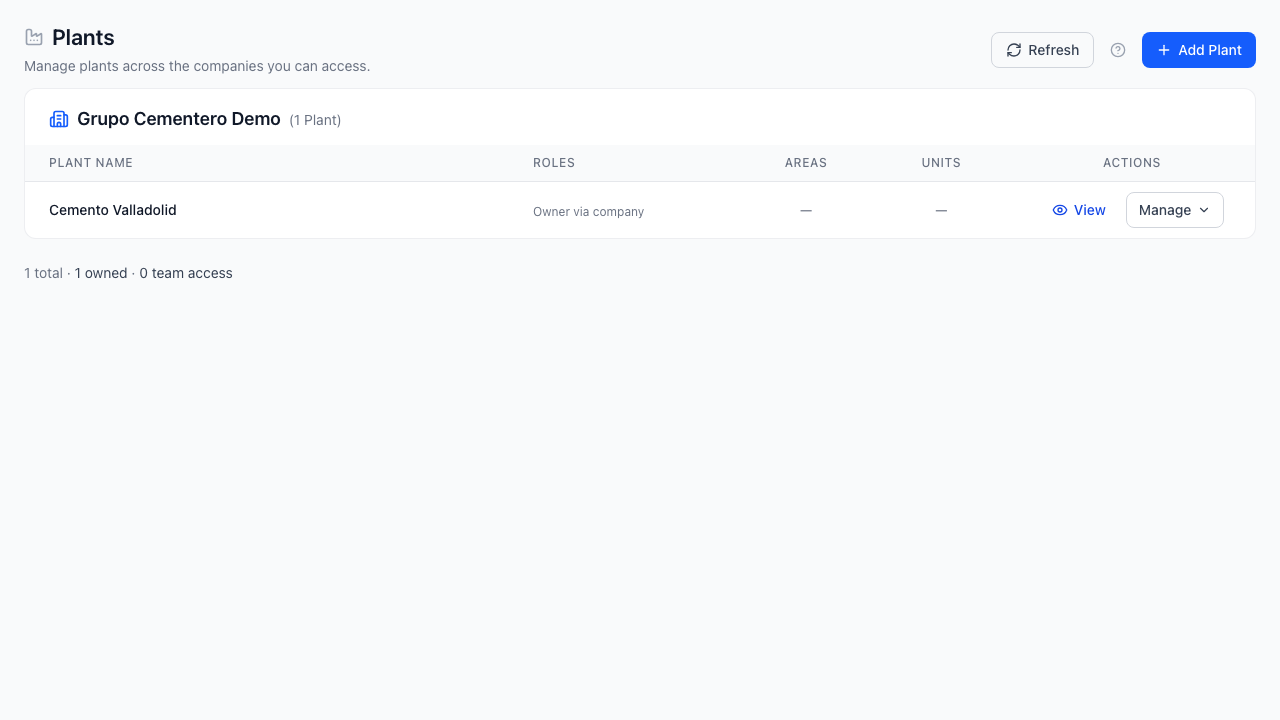
Step 1: Open the Plants Workspace
- Go to Configuration -> Plants in the left navigation bar.
- Verify the target Company is active in the header selector.
Step 2: Create a Plant
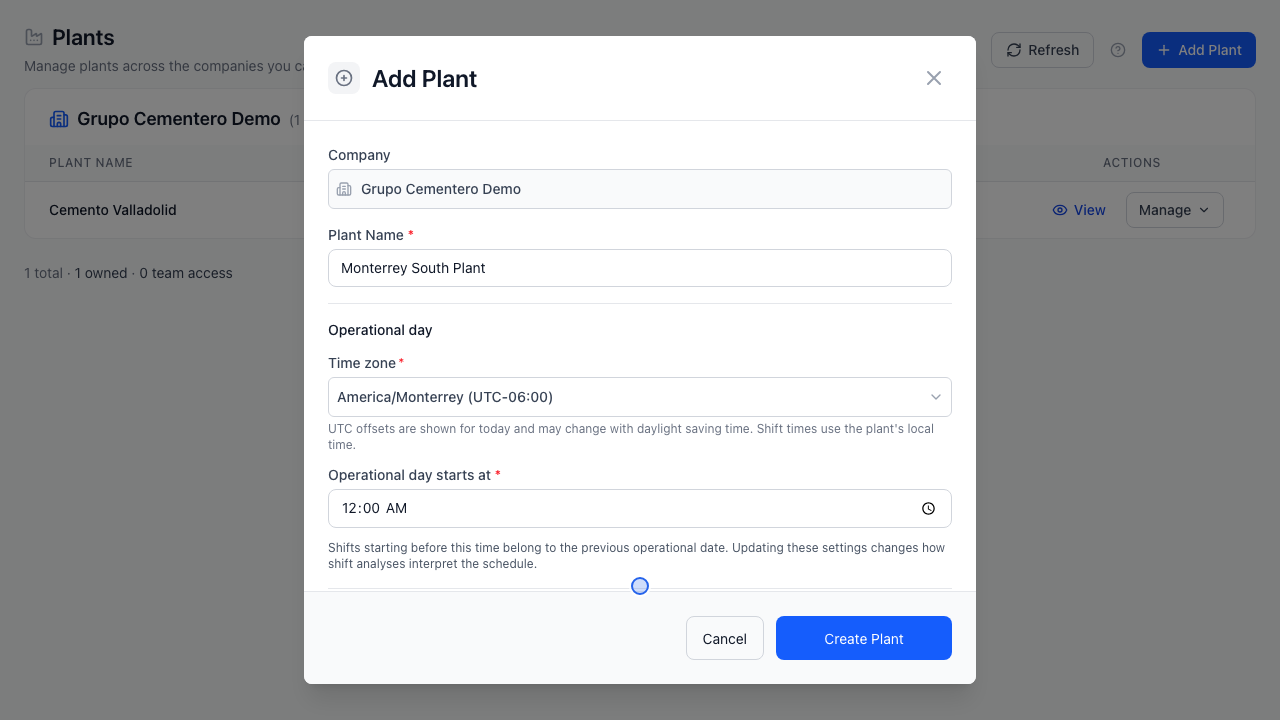
- Click Add Plant in the page header.
- Complete the required fields:
- Plant Name (required): Unique site display name (e.g.,
Monterrey Clinker Line). - Time Zone (required): IANA zone such as
America/MonterreyorAmerica/Mexico_Cityfor shift alignments and timestamps. - Operational Day Start: Start time of the plant's production day (e.g.,
06:00), used by shift and daily totalization rollups. - Location / Description (optional): Physical city/site notes.
- Plant Name (required): Unique site display name (e.g.,
- Configure Company Resource Inheritance:
- Use company downtime catalogs: Shares corporate Stoppage Classes, Failure Types, and Reasons read-only.
- Use company machine templates: Shares corporate Machine Templates (requires company downtime catalog inheritance to remain enabled).
- Save to create the plant.
Step 3: Edit or Delete a Plant
- Edit: On the plant card, click Manage -> Edit plant to adjust the plant name, time zone, operational day start, location, or catalog inheritance toggles.
- Delete: Click Manage -> Delete plant. Type the exact plant name into the confirmation input to enable Yes, Delete Plant.
Permanent Plant Deletion
Deleting a plant permanently removes its local process areas, production units, tags, shifts, and user assignments. Export any historical reports first if needed.