Manage Plant Downtime Catalogs
Quick Demo · 0:11
00:11Manage Plant Downtime Catalogs
Chapters
Searchable Transcript (2 steps)
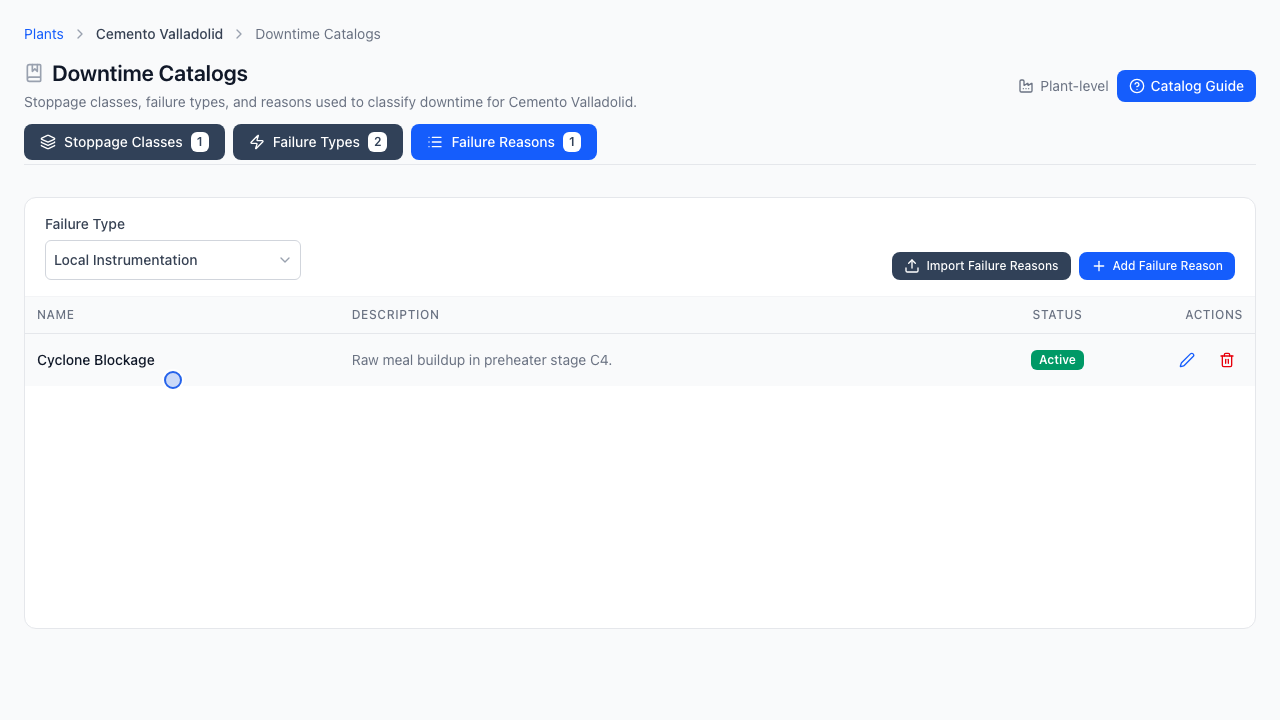
- 00:01When company inheritance is disabled, the plant maintains its own Failure Types.
- 00:05Select a failure type and add plant-specific root causes for downtime logging.
Each Plant can either inherit its parent company's shared Downtime Catalog or maintain an independent, plant-specific catalog tailored to local equipment processes.
Inheritance Mode vs. Local Mode
Mode (Use company downtime catalogs) | Behavior |
|---|---|
| Enabled (Inherited) | Plant displays the corporate Company Downtime Catalog in read-only mode so multi-site reports share identical codes. Also required if the plant inherits Company Machine Templates. |
| Disabled (Plant-Owned) | Plant teams can create, edit, and delete local Stoppage Classes, Failure Types, and Failure Reasons under that facility only. |
You can change the inheritance setting anytime in Configuration -> Plants -> Manage -> Edit plant.
Step 1: Open Plant Downtime Catalogs
- Navigate to Configuration -> Plants.
- Open Manage -> Downtime Catalogs on the target plant row.
- Confirm the breadcrumb reads
Plants > <Plant Name> > Downtime Catalogs.
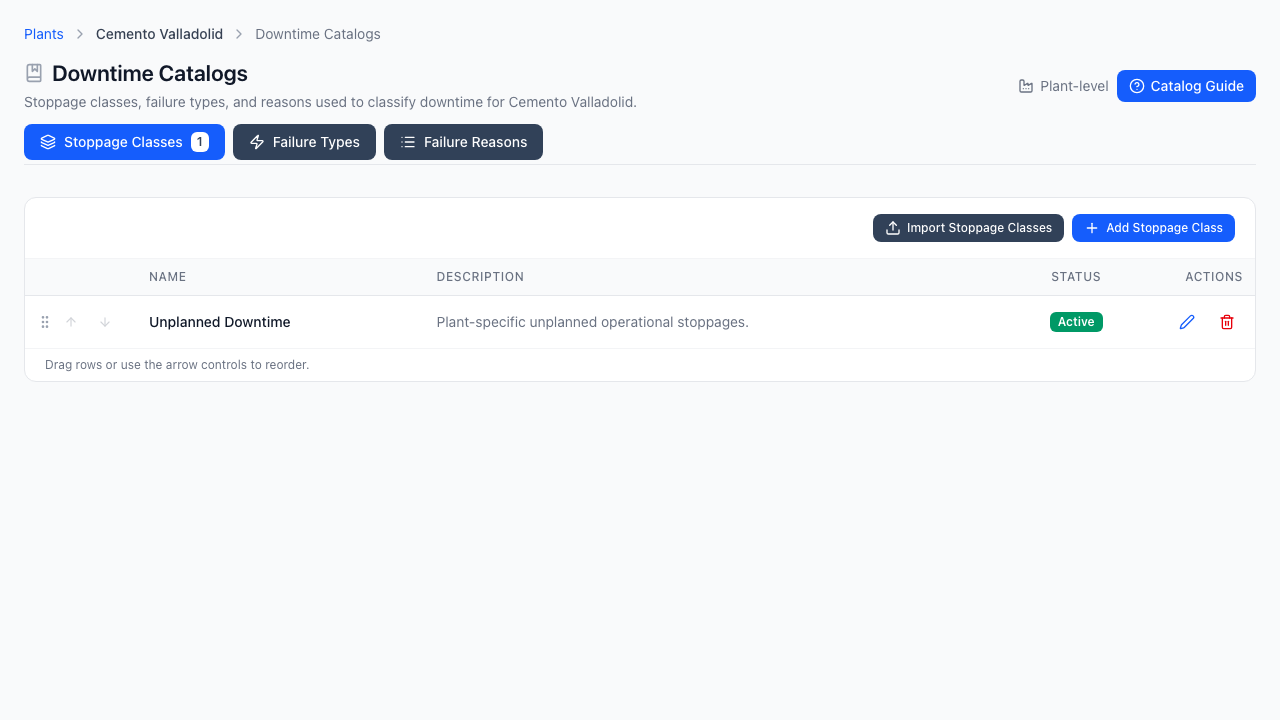
Step 2: Add Plant Stoppage Classes & Failure Types
- On Stoppage Classes, group downtime broadly (e.g., Unplanned Downtime, Planned Maintenance).
- Switch to Failure Types, click Add Failure Type, and create site-specific disciplines such as
Local InstrumentationorKiln Process.
Step 3: Filter by Failure Type & Add Failure Reasons
- Open the Failure Reasons tab.
- Pick a Failure Type in the top dropdown filter to reveal Add Failure Reason.
- Add concrete operator-selectable causes (such as
Burning Zone Thermocouple Fault) that describe why a line stopped.