Create, Edit, and Delete Production Units
Quick Demo · 0:14
00:14Create, Edit, and Delete a Production Unit
Chapters
Searchable Transcript (3 steps)
- 00:02Select plant and process area, click Add Production Unit, and enter its name.
- 00:05Open Edit on the unit row to rename the production unit.
- 00:09Type the exact unit name to confirm permanent deletion.
What Is a Production Unit?
A Production Unit represents an operating production line or functional equipment cell inside a Process Area (for example, RM01 - Raw Mill 01 or KL01 - Rotary Kiln 01). Production units hold physical Machines, group Tags for live dashboards and alarms, and serve as the operational scope for OEE and downtime capture.
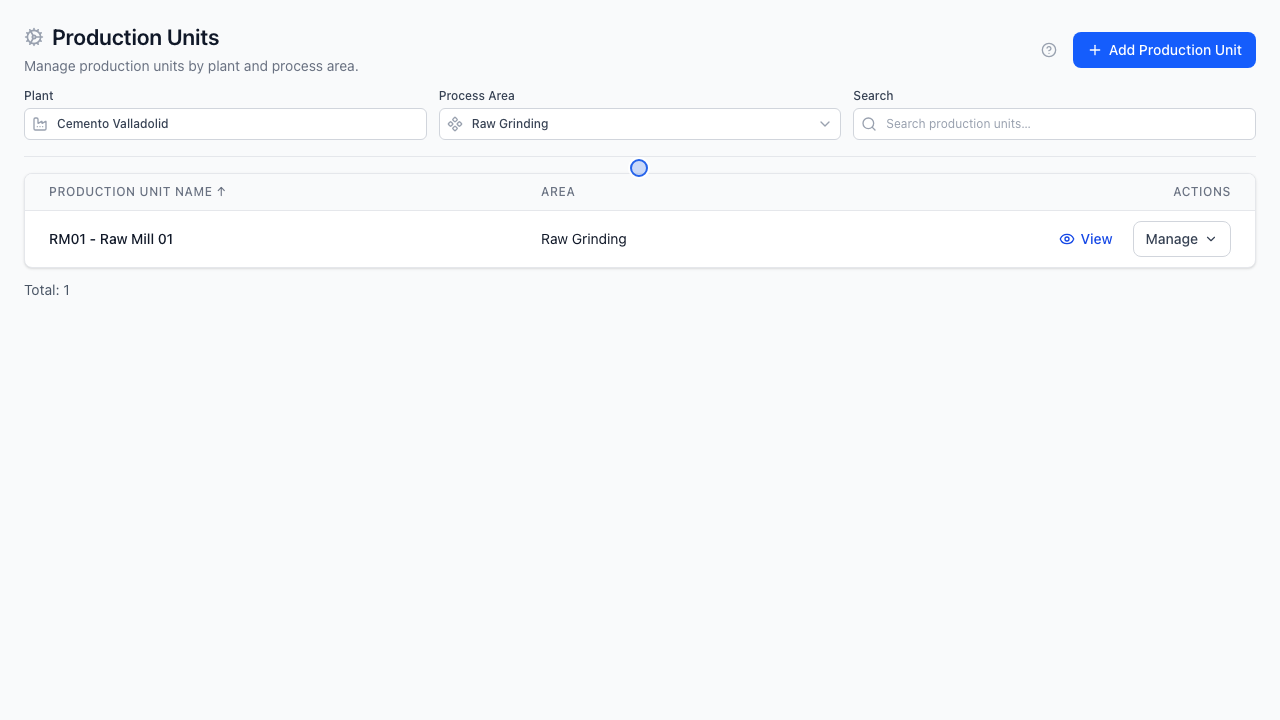
Step 1: Select Plant and Process Area Scope
- Open Configuration -> Production Units.
- Choose the target Plant and Process Area in the cascading toolbar dropdowns above the table.
Step 2: Create a Production Unit
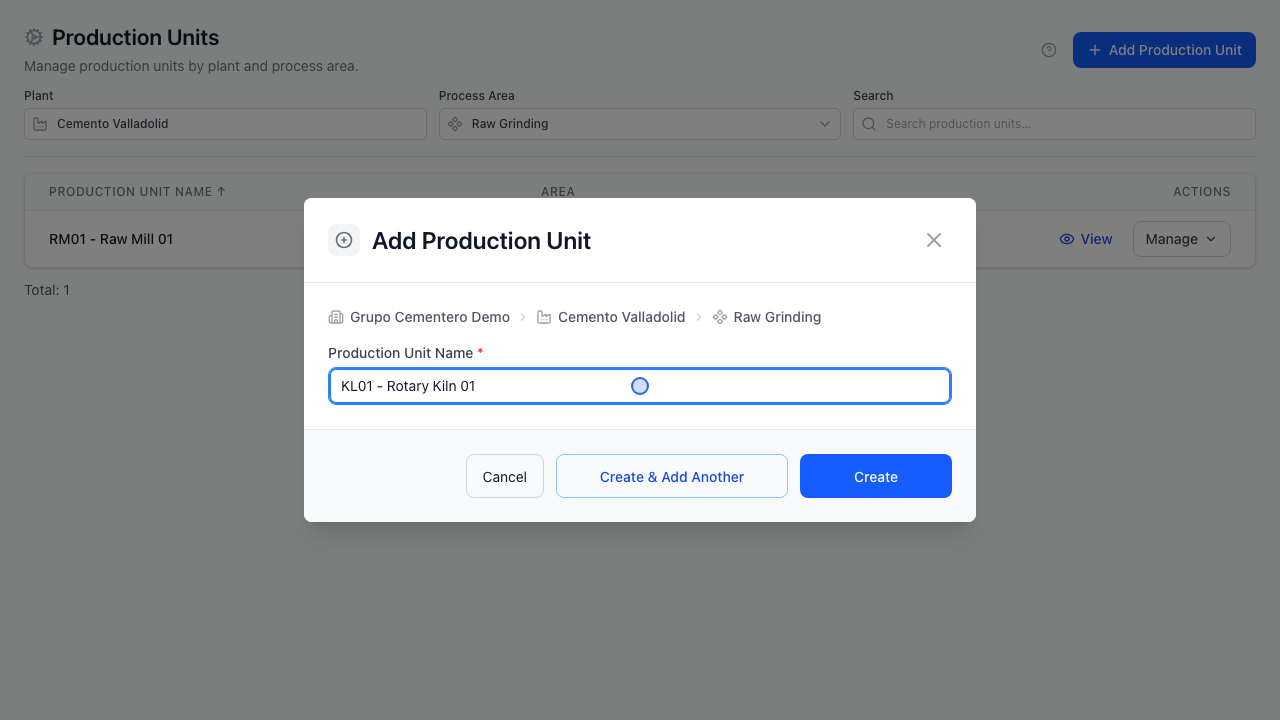
- Once both Plant and Process Area are active, click Add Production Unit.
- Enter the Production Unit Name (required, e.g.,
KL01 - Rotary Kiln 01) and an optional description. - Click Save (or Save & Add Another when creating multiple units in a row).
Step 3: Edit or Delete a Production Unit
- Edit: Open the row menu -> Edit to rename the production unit or adjust its properties.
- Delete: Open the row menu -> Delete. Type the exact production unit name to unlock confirmation and remove the unit.