Manage Internal Plant Users
Quick Demo · 0:10
00:10Add, Invite, and Manage Internal Plant Users
Chapters
Searchable Transcript (2 steps)
- 00:01Enter the team member email address and toggle one or more plant roles.
- 00:05Use Manage to change roles or remove access after typing the confirmation email.
Internal Users are platform team members (engineers, operators, supervisors, and plant admins) who sign in directly to OTCognix and receive plant-scoped permissions through one or more Plant Roles.
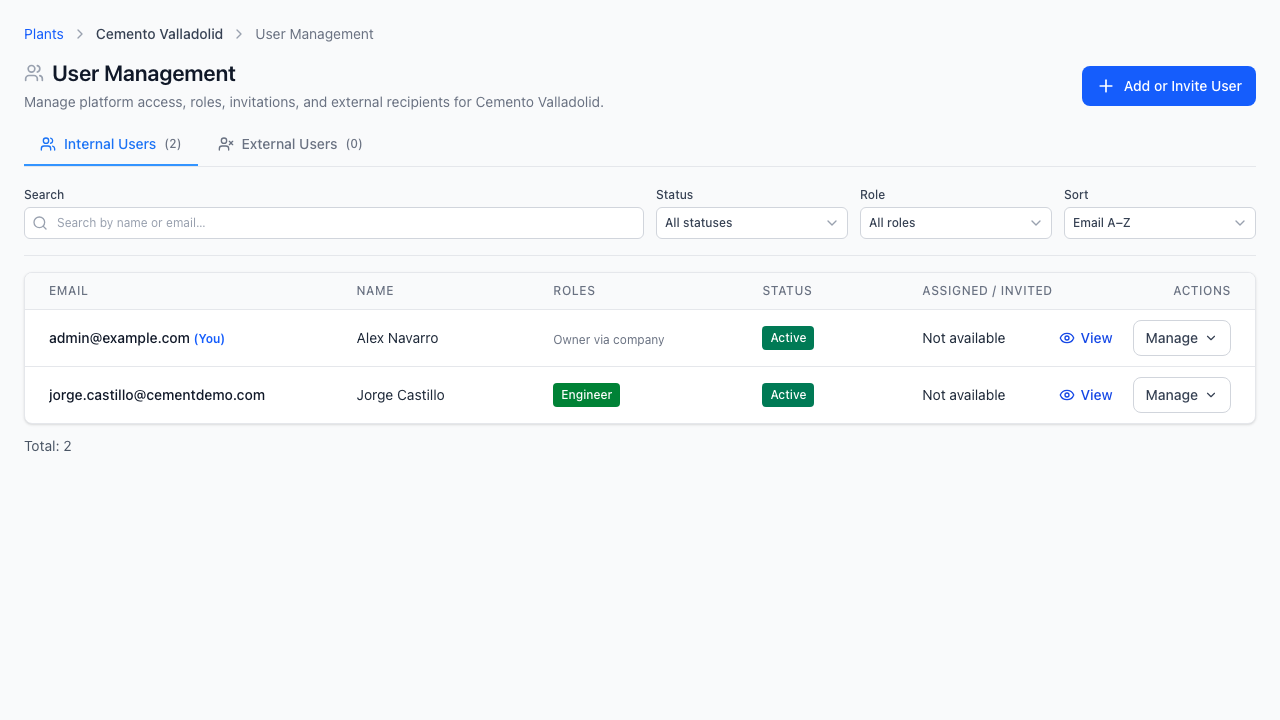
Step 1: Open Plant Users (Internal Tab)
- Navigate to Configuration -> Plants, open Manage on the target plant, and choose Users.
- Confirm you are on the Internal Users tab (
Plants > <Plant Name> > User Management).
Step 2: Add or Invite an Internal User
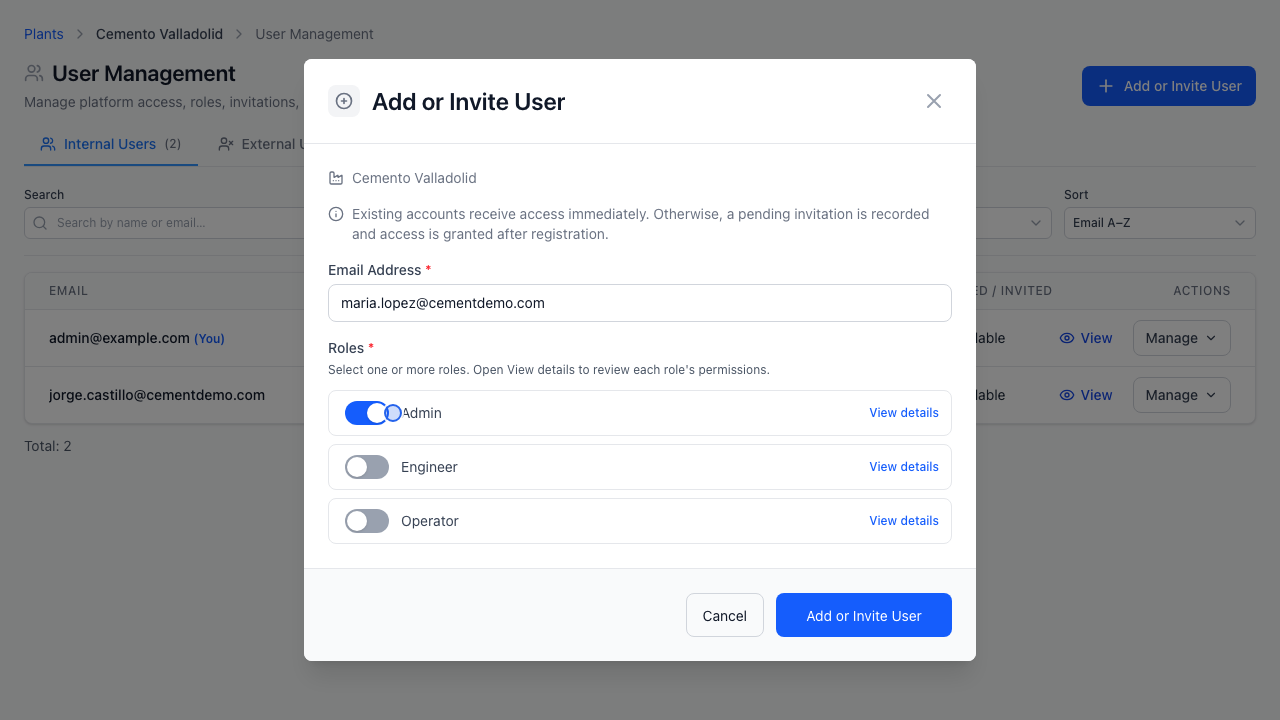
- Click Add or Invite User.
- Enter the user's Email Address (trimmed and normalized automatically).
- Toggle at least one Plant Role (
Plant Admin,Engineer,Operator, orViewer). Use View details beside any role to review its permissions before assigning. - Submit the form:
- Existing OTCognix accounts appear as Active immediately.
- New email addresses create a Pending invitation activated automatically upon registration.
Step 3: Edit Roles, Revoke Invitations, or Remove Access
- Edit Roles (active users): Click Manage -> Edit roles to adjust plant role switches without revoking access.
- Revoke Invitation (pending users): Click Manage -> Revoke invitation and type the confirmation email address.
- Remove from Plant (active non-self users): Click Manage -> Remove from plant and type the exact email address to revoke all plant permissions immediately.
Difference Between Internal Users & External Users
Internal Users hold an OTCognix platform login and plant role permissions. External partners who should only receive read/stream Data Collections without signing into dashboards belong on the External Users allowlist instead.