Configure Plant Shifts
Quick Demo · 0:10
00:10Manage Plant Shift Definitions
Chapters
Searchable Transcript (3 steps)
- 00:01Open Manage -> Shift definitions on the target plant.
- 00:02Enter shift name, start time, and end time; overnight blocks automatically span midnight.
- 00:06Edit or remove shift blocks anytime by confirming the shift name.
Shift Definitions partition each plant operational day into named work crews or production windows (for example, Shift A (Day), Shift B (Swing), Shift C (Night)). Accurate shift schedules power shift-based production KPIs, operator handoffs, and downtime attribution.
Step 1: Open Shift Definitions
- Go to Configuration -> Plants.
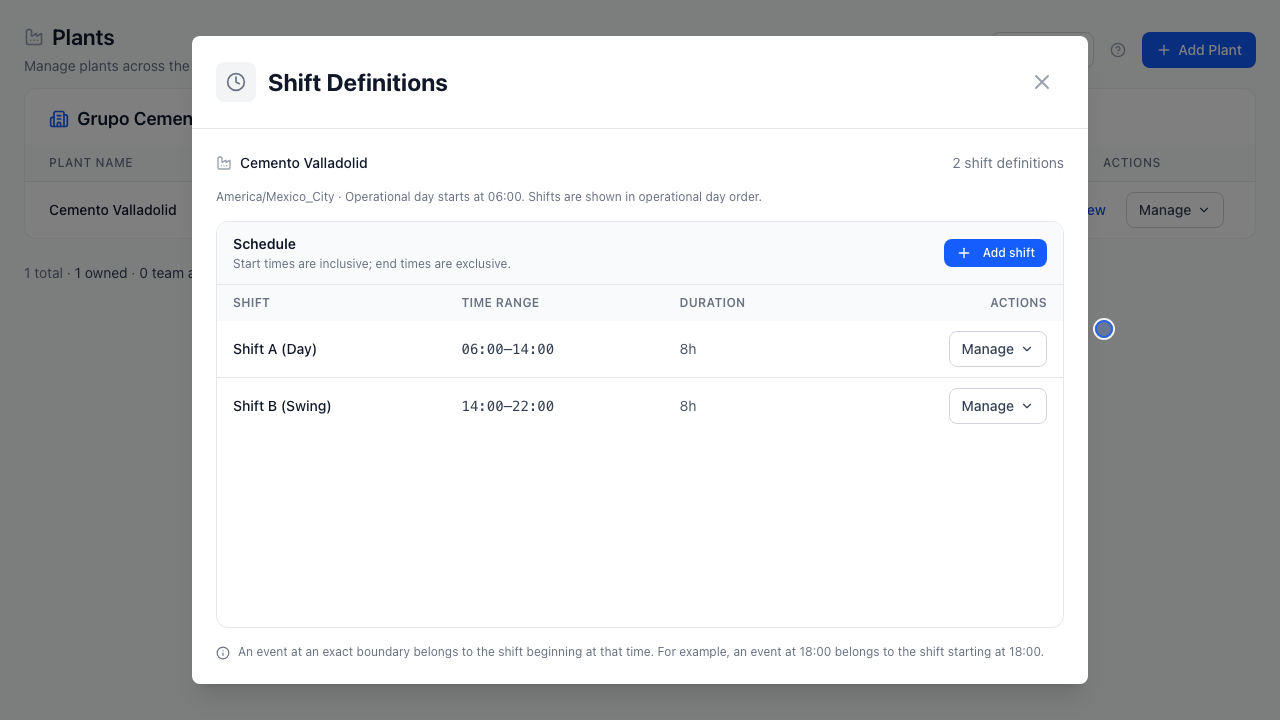
- On the target plant card, click Manage -> Shift definitions.
- Review the plant's active Time Zone and Operational Day Start shown at the top of the schedule panel.
Step 2: Add a Shift (Including Overnight Blocks)
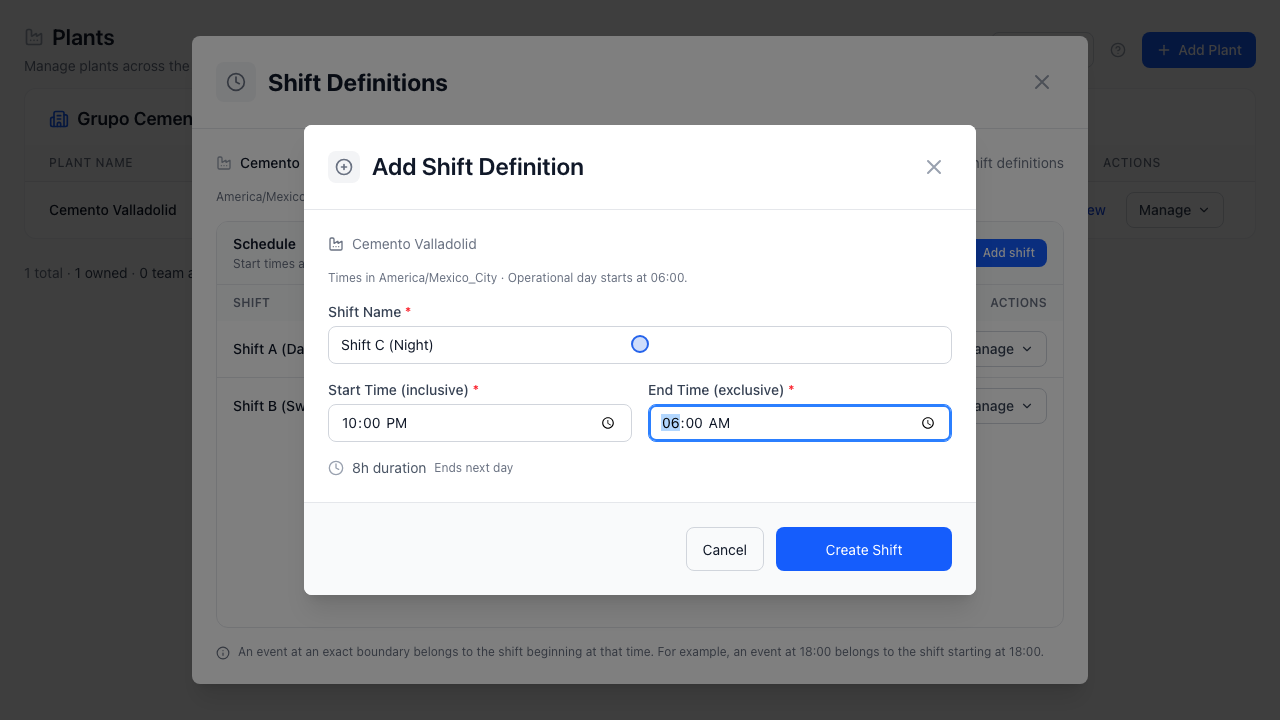
- Click Add Shift inside the Shift Definitions modal.
- Fill in:
- Shift Name (required): Clear crew or period label (for example,
Shift C (Night)). - Start Time (
HH:MM): Beginning of the shift in the plant's local time zone (for example,22:00). - End Time (
HH:MM): End of the shift (06:00). When End Time is earlier than Start Time, OTCognix automatically detects that the shift crosses midnight and calculates its exact duration.
- Shift Name (required): Clear crew or period label (for example,
- Submit to add the block. OTCognix validates against overlaps with existing shifts.
Step 3: Edit or Delete a Shift
- Edit: Click Manage -> Edit shift on a shift row to rename it or adjust its start/end window.
- Delete: Click Manage -> Delete shift and type the exact shift name in
#delete-shift-confirmation(confirmation box) before confirming removal.
Avoiding Overlap Errors
Ensure neighboring shift blocks meet end-to-start (for example 06:00–14:00, 14:00–22:00, 22:00–06:00) without overlapping minutes.