Manage External Plant Users
Quick Demo · 0:08
00:08Manage the Plant External Users Allowlist
Chapters
Searchable Transcript (2 steps)
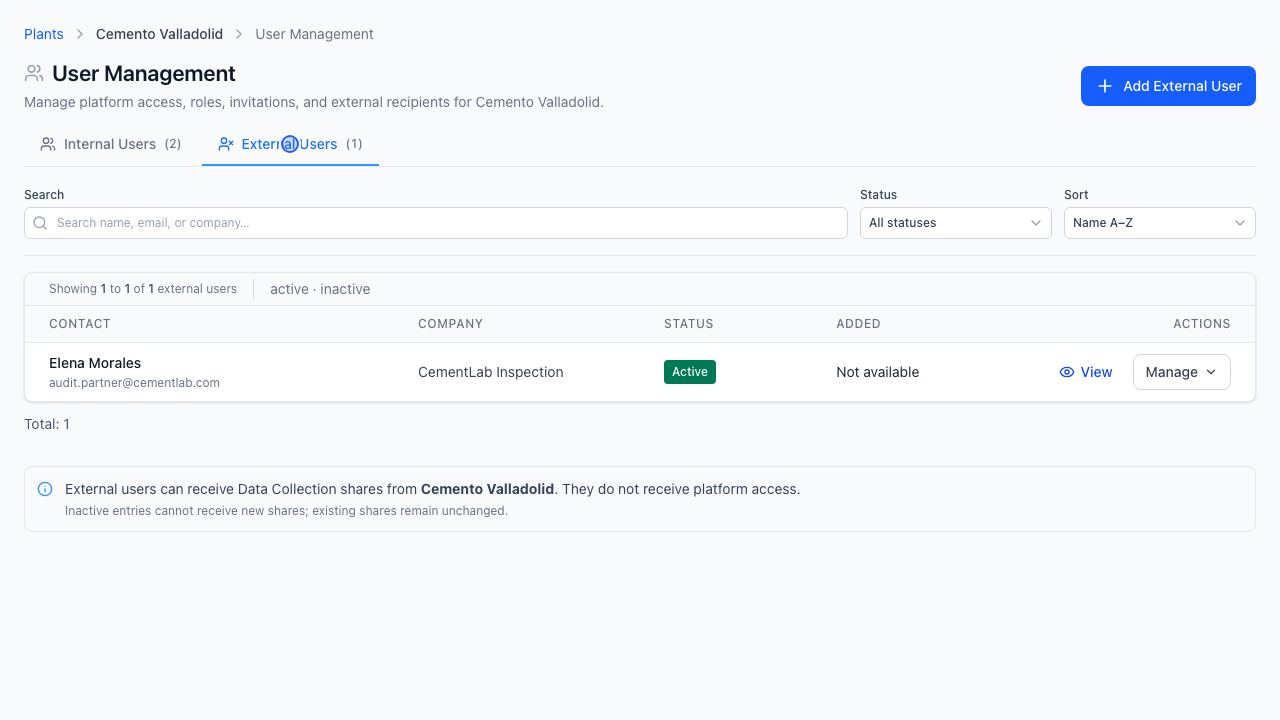
- 00:01Open the External Users tab to manage the plant allowlist for external shares.
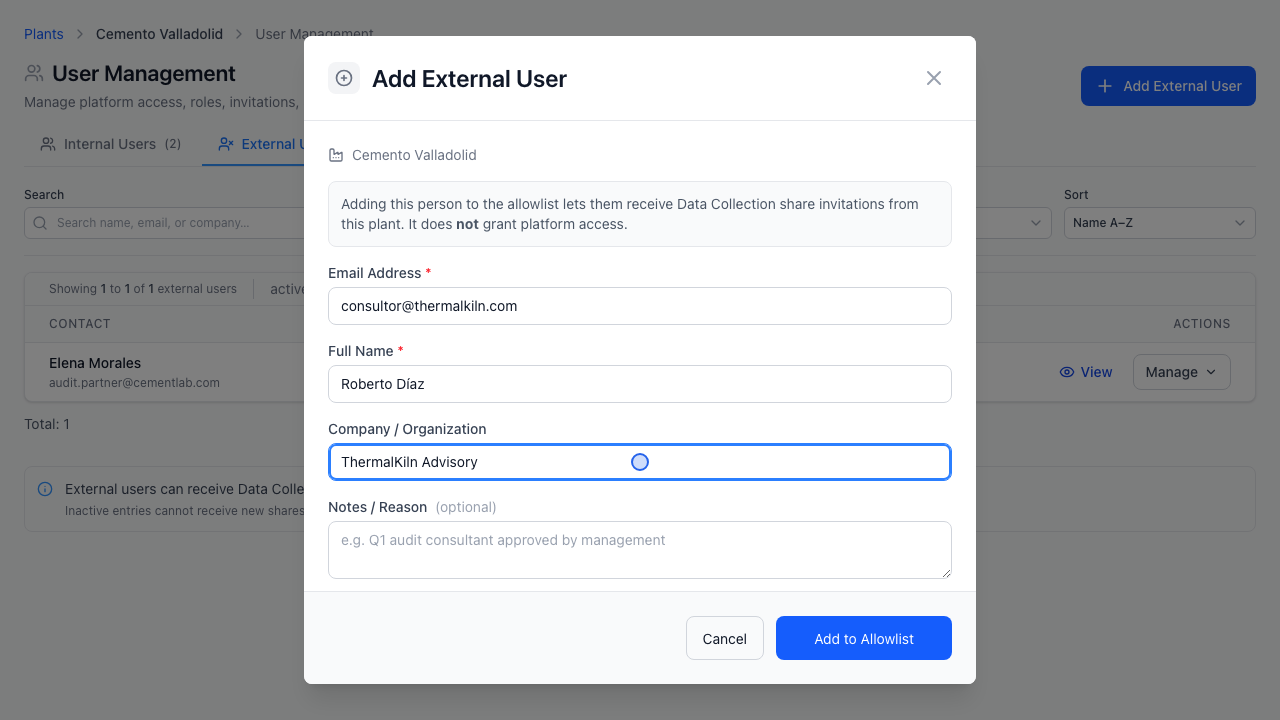
- 00:02Provide email, full name, organization, and optional notes; allowlist entries do not grant platform login.
The External Users tab manages a per-plant allowlist of partner contacts (auditors, energy consultants, OEM vendors, or joint-venture engineers) authorized to receive shared Data Collections.
No OTCognix UI Login Granted
Adding a contact to External Users does not create a plant dashboard login or give UI access to Trends, Alarms, or Assets. Allowlisted partners only consume specific Data Collections explicitly shared with them via API or streaming credentials.
Step 1: Switch to the External Users Tab
- Open Configuration -> Plants, select Manage -> Users on your plant, and switch to the External Users tab.
- Review approved partner contacts, their organization, and status.
Step 2: Add an External Recipient
- Click Add External User.
- Complete the form fields:
- Email Address (required): Recipient's work email (up to
320characters). - Full Name (required): Contact display name (
255characters max). - Company / Organization (optional): Partner firm (
255characters max). - Notes / Reason (optional): Audit context explaining why this recipient is allowlisted (
1000characters max).
- Email Address (required): Recipient's work email (up to
- Click Add to Allowlist.
Step 3: Edit Details or Revoke Eligibility
- Edit: Open the row menu to update organization details, contact name, or audit notes.
- Delete / Remove: Type the exact email confirmation when removing an external contact to prevent new Data Collection shares to that recipient.