Add and Invite Plant Users
Plant User Management controls both internal platform access (via assigned plant roles) and the allowlist of external recipients eligible for Data Collection share invitations.
Before You Start
- Hold the
users:managepermission for the target plant. Users withoutusers:managesee an access-denied message on this page. - Decide whether the person needs:
- Platform access inside OTCognix → use the Internal Users tab (Add or Invite User).
- External Data Collection sharing only without a platform login → use the External Users tab (Add External User).
Step 1: Open Plant User Management
- Go to Configuration → Plants.
- Open the target plant's action menu and select Users.
- Verify the header breadcrumb reads
Plants > <Plant Name> > User Management.
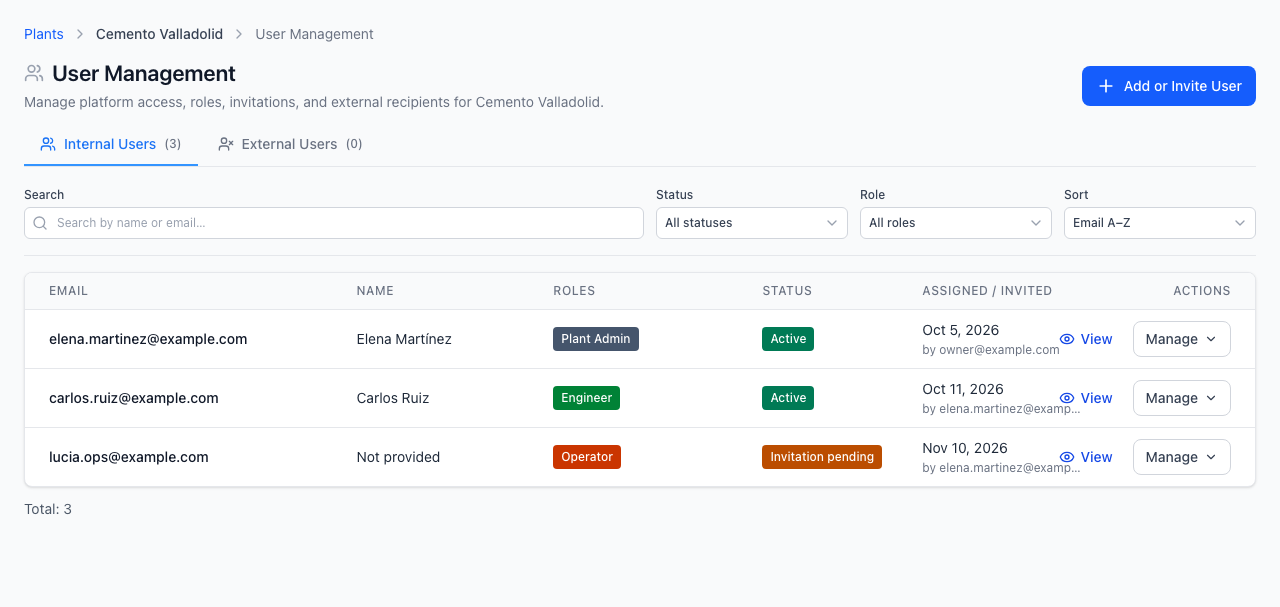
Option A: Add or Invite an Internal Platform User
- Stay on the primary Internal Users tab and click Add or Invite User.
- Enter the user's Email Address (required, valid email format up to
320characters). - Select at least one Role in the role selector:
- Toggle switches next to the available plant roles (for example
Plant Admin,Engineer,Operator, orViewer). - Click View details beside a role to inspect its exact permissions before assigning it.
- Note that the Owner role is scoped at the company level and cannot be assigned in this plant dialog.
- Toggle switches next to the available plant roles (for example
- Submit the form:
- Existing OTCognix accounts receive immediate plant access.
- Unregistered emails create a pending invitation; access is granted once the person completes registration with that email address.
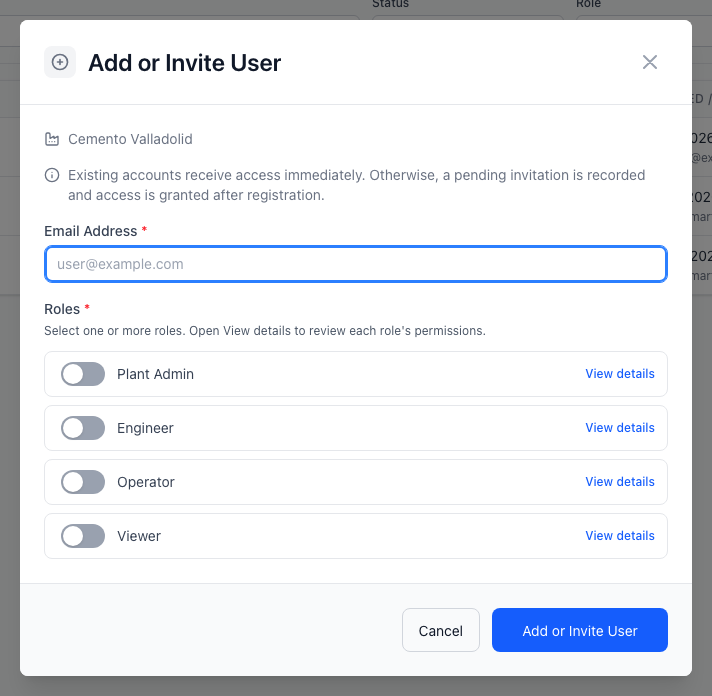
Internal User Field Reference
| Field | Required | Validation & Behavior |
|---|---|---|
| Email Address | Yes | Valid email address, max 320 characters, trimmed and lowercased automatically. |
| Roles | Yes | Minimum of 1 role must be selected (Owner role excluded at plant level). |
Option B: Add an External User to the Allowlist
External users cannot log in to the plant's OTCognix UI. Adding someone to the external allowlist permits them to receive Data Collection share invitations from this plant.
- Switch to the External Users tab in User Management.
- Click Add External User.
- Complete the form:
- Email Address (required): Recipient email (
320characters max). - Full Name (required): Recipient display name (
255characters max). - Company / Organization (optional): Partner organization name (
255characters max). - Notes / Reason (optional): Context explaining why the recipient is allowlisted (
1000characters max).
- Email Address (required): Recipient email (
- Click Add to Allowlist.
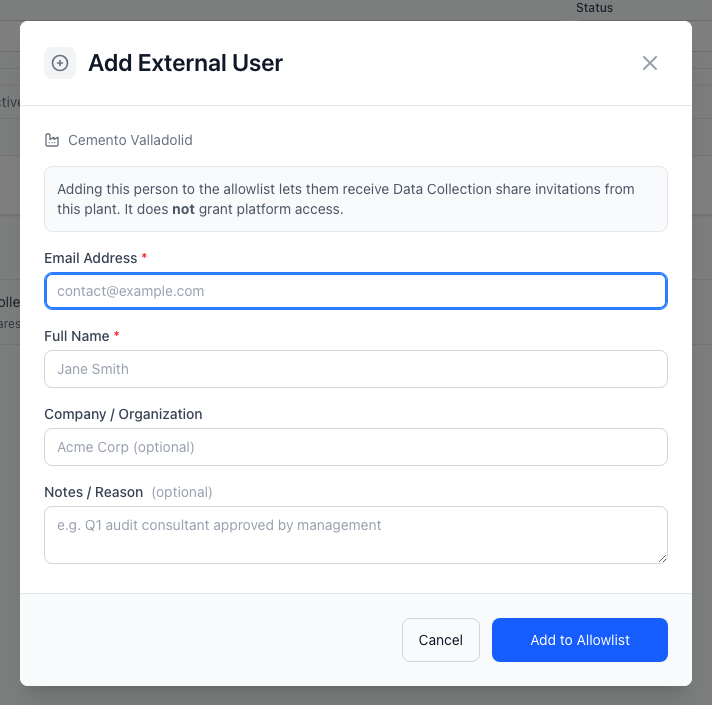
No Platform Login Granted
Adding an external recipient to the allowlist does not grant platform access to dashboards, trends, or plant configuration. They only gain access to specific Data Collections explicitly shared with them.
Step 3: Filter and Audit Existing Users
Use the User Management toolbar filters to audit access:
- Search: Filter by name or email address.
- Status & Role: Narrow down active members, pending invitations, or holders of a specific role.
- Sort: Order the list as needed when reviewing large teams.
Common Errors & Troubleshooting
| Symptom / Error | Likely Cause | Resolution |
|---|---|---|
| Access denied when opening Users | Account lacks users:manage on that plant | Ask a Company Owner or Plant Admin with users:manage to make changes. |
Conflict / already assigned (409) | Email already belongs to the plant or has a pending invitation | Search the Internal Users table and edit the existing entry instead. |
| User cannot see dashboards after invite | Invited email has not registered yet, or wrong role selected | Verify registration status and inspect role permissions via View details. |
| External contact still cannot open Data Collection | Contact was only allowlisted, not sent a collection share | Share the target Data Collection with the external user from Data Collections. |